



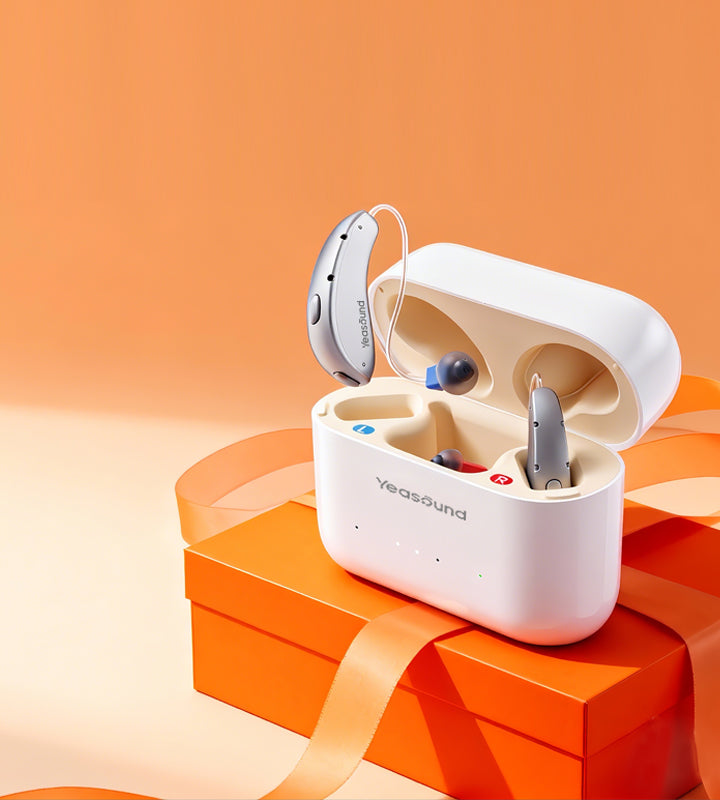
Modern hearing aids can do much more than amplify sound—they can connect directly to your smartphone for calls, music streaming, and easy control.
Yeasound RIC700 and RIC800 hearing aids support both Apple MFi and Android ASHA connections, allowing users on either platform to enjoy a stable, low-power wireless experience.
Yeasound RIC700 and RIC800 hearing aids support both Apple MFi and Android ASHA connections, allowing users on either platform to enjoy a stable, low-power wireless experience.
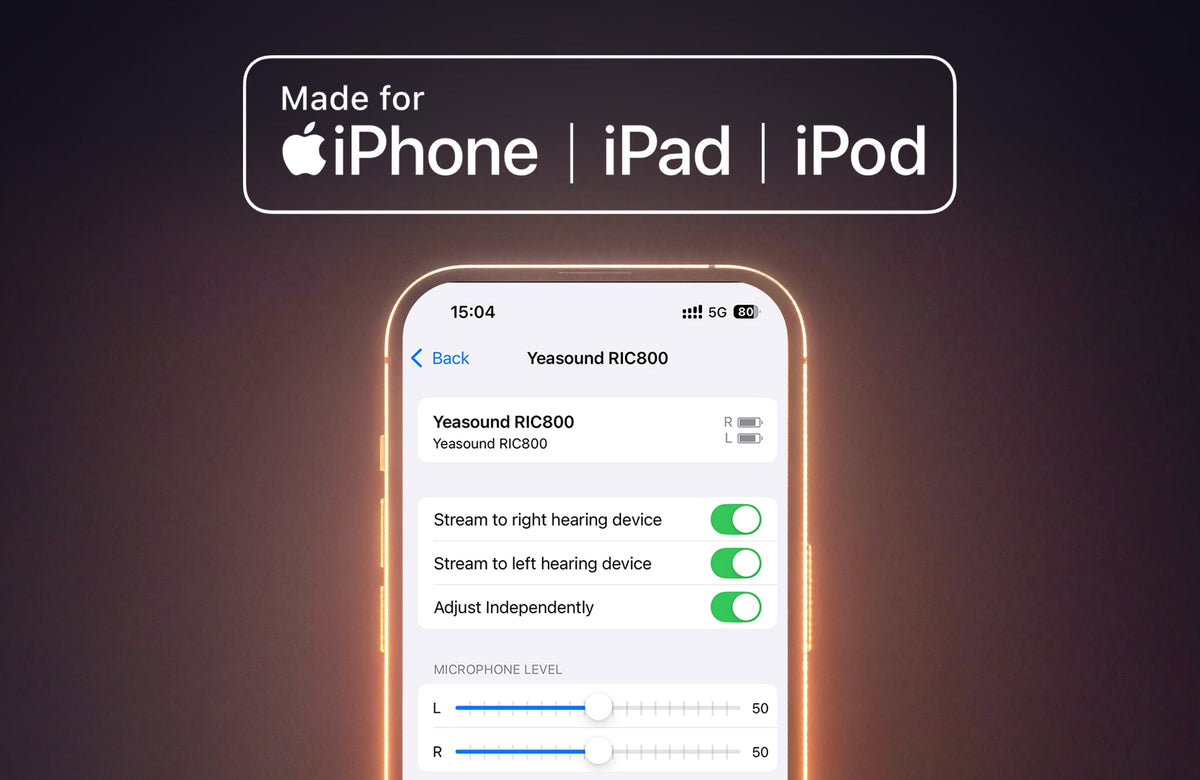
This blog focuses primarily on how to connect hearing aids using Apple's MFi (Made for iPhone) technology.
What Is MFi (Made for iPhone)?
MFi is Apple's wireless standard designed specifically for hearing aids. It enables:
Stable, system-level connection with iPhone and iPad
Lower power consumption
Direct streaming for phone calls and media
Step-by-Step: Connecting MFi Hearing Aids to iPhone
For a detailed video tutorial, please refer to this link below
Step 1: Download the iYeasound App
Before pairing your hearing aids, download the iYeasound app from the App Store.
Open the App Store
Search for iYeasound
Download and install the app on your iPhone
System compatibility:
iOS 14 or later & Android 10 or later
The app allows you to control volume, programs, and other hearing aid settings after connection.

Step 2: Turn On Bluetooth
Open Settings
Tap Bluetooth
Make sure Bluetooth is turned On
Step 3: Go to Hearing Device Settings
Open Settings
Tap Accessibility
Select Hearing Devices
📌 This is the correct place to pair MFi hearing aids—not the standard Bluetooth device list.

Step 4: Put Your Hearing Aids in Pairing Mode
If your hearing aids are in the charging case, simply remove them from the case.
If your hearing aids are already outside the charging case, place them back into the case, wait a few seconds, then remove them again.
This action restarts the hearing aids and puts them into pairing mode.
Your iPhone should detect the hearing aids within a few seconds.
Your iPhone should detect the hearing aids within a few seconds.
Step 5: Confirm Pairing
Tap the hearing aid name when it appears
If you wear two hearing aids, you may see two pairing prompts
Tap Pair to confirm
Once connected, the status will show Connected.

Step 6: Connect to iYeasound App
After confirming the pairing in settings, open the iYeasound app and follow the on-screen instructions to complete the in-app connection and setup.
The app will guide you through final steps to ensure your hearing aids are ready to use.
What You Can Do After Connecting
With MFi successfully connected, you can:
Stream calls, music, videos, and navigation audio
Adjust volume, programs and more advanced features using the iYeasound app
You can always check the connection status under:
Settings → Accessibility → Hearing Devices
Settings → Accessibility → Hearing Devices





Share:
Stay Updated
Get the latest hearing tips & news delivered to your inbox.