



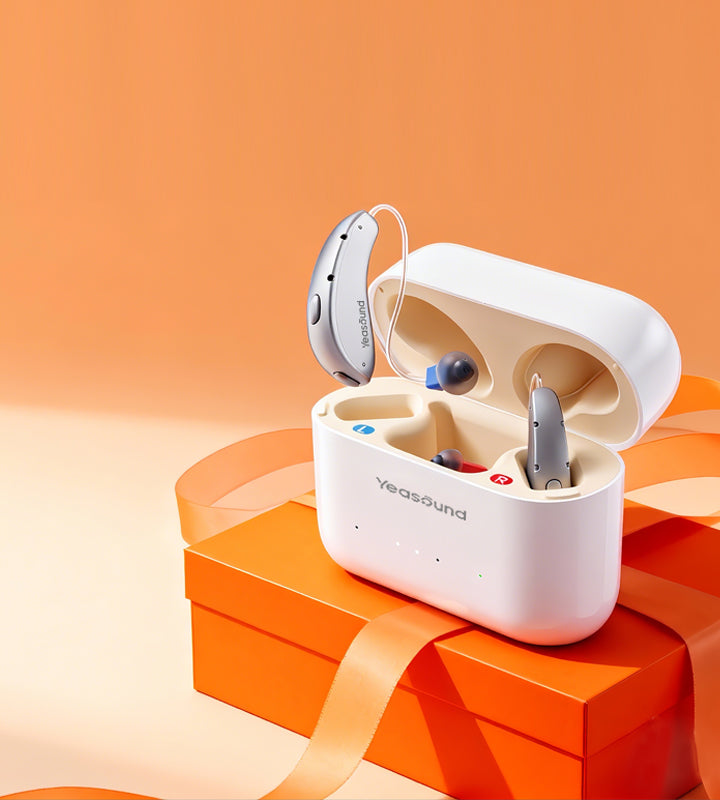
Modern hearing aids can do much more than amplify sound—they can connect directly to your smartphone for calls, music streaming, and easy control.
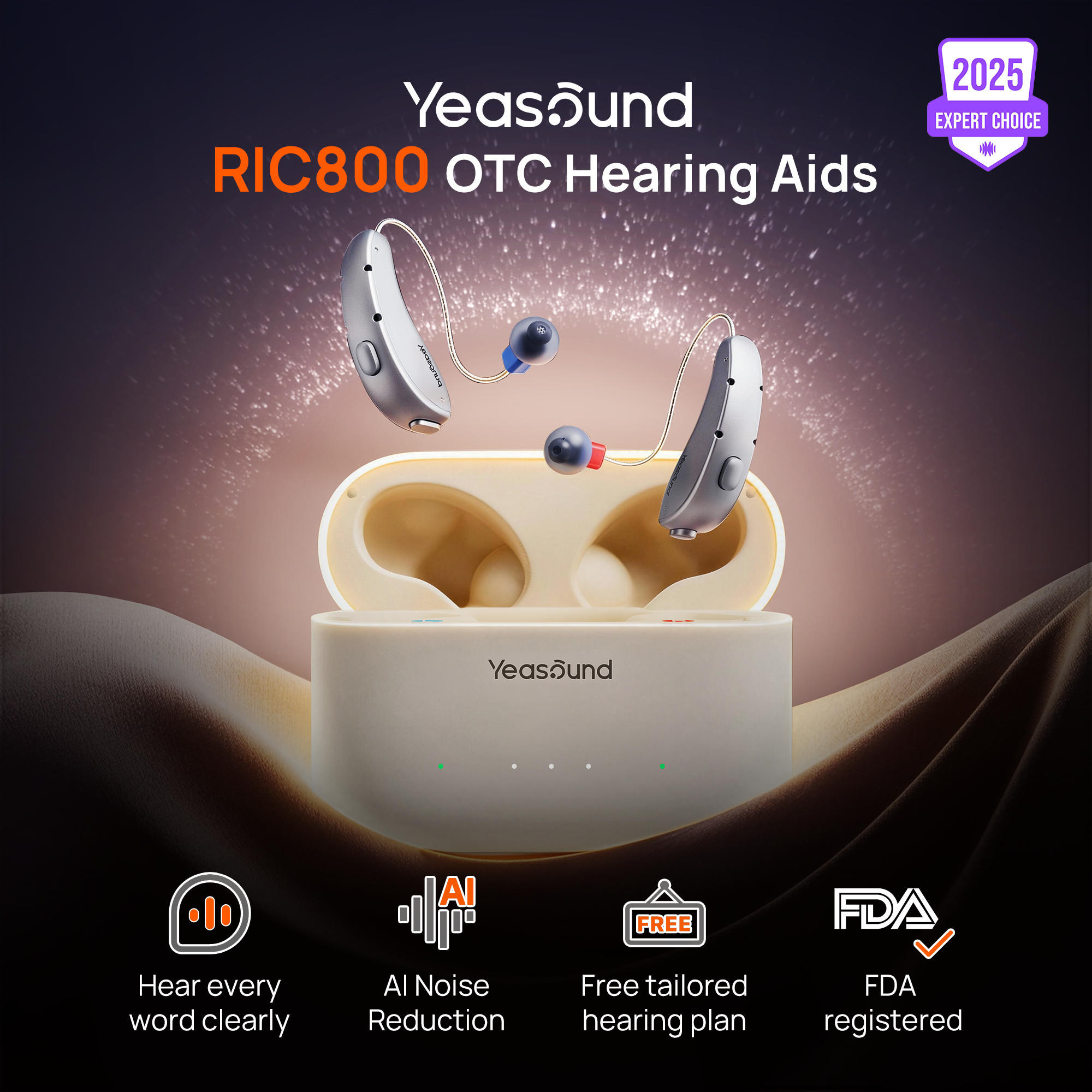
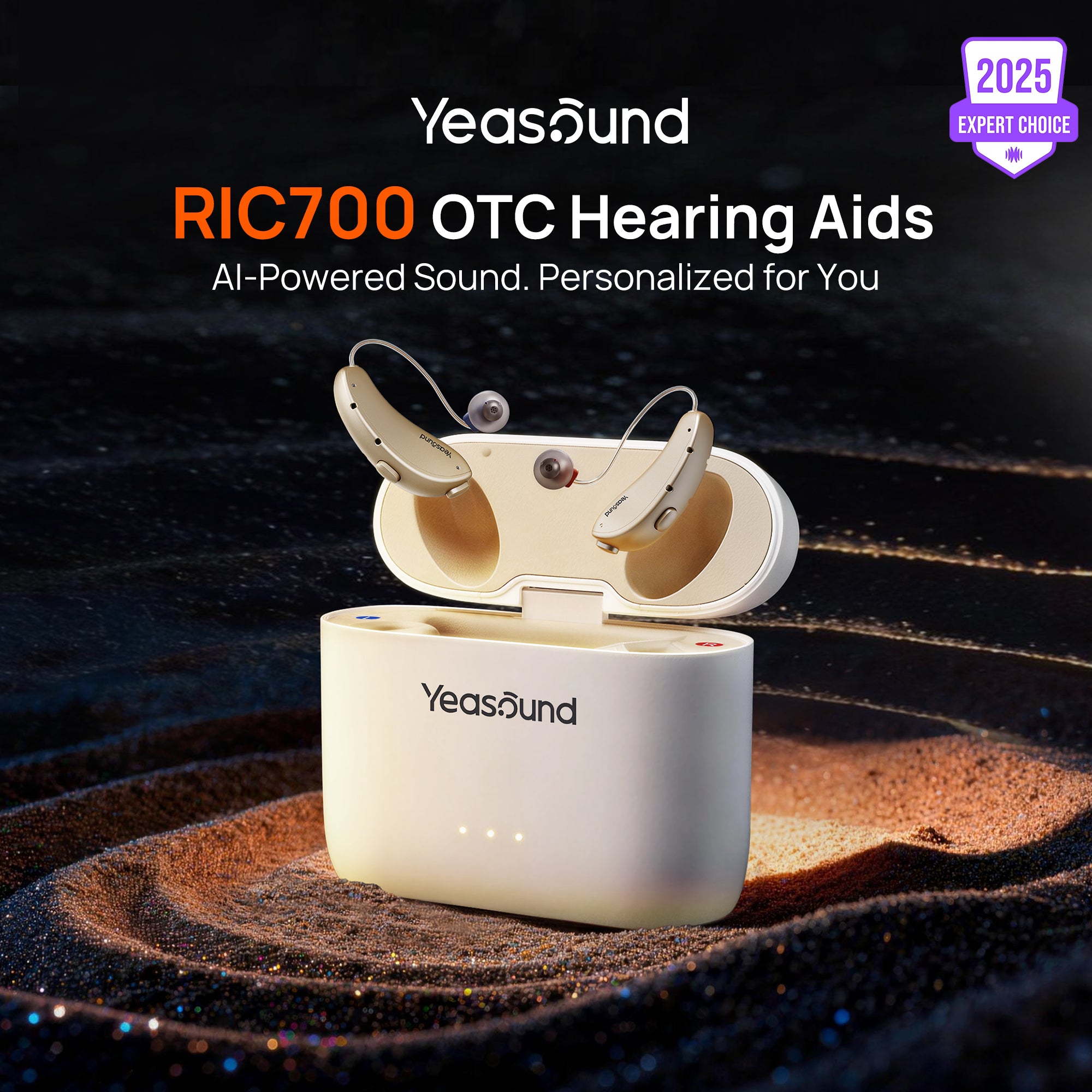
Yeasound RIC700 and RIC800 hearing aids support both Apple MFi and Android ASHA connections, allowing users on either platform to enjoy a stable, low-power wireless experience.
Yeasound RIC700 and RIC800 hearing aids support both Apple MFi and Android ASHA connections, allowing users on either platform to enjoy a stable, low-power wireless experience.
This blog focuses primarily on how to connect hearing aids using Android's ASHA (Audio Streaming for Hearing Aids) technology.

What Is ASHA?
ASHA (Audio Streaming for Hearing Aids) is a Bluetooth Low Energy (BLE) protocol developed by Google specifically for compatible Android devices. It enables:
Direct audio streaming from Android phones
Lower power consumption
Stable wireless connection
Step-by-Step: Connecting ASHA Hearing Aids to Android
For a detailed video tutorial, please refer to this link below:
Step 1: Download the iYeasound App
Before pairing your hearing aids, download the iYeasound app from the Google Play Store.
Open Google Play Store
Search for iYeasound
Download and install the app
System compatibility:
Android 10 or later
The app allows you to control volume, programs, and other hearing aid settings after connection.

Step 2: Turn On Bluetooth
Open Settings
Tap Connected devices (or Bluetooth, depending on your phone model)
Make sure Bluetooth is turned On
Step 3: Connect to the iYeasound App
Open the iYeasound app
Follow the on-screen instructions
The app will complete the in-app connection and guide you through final setup to ensure your hearing aids are ready to use.

What You Can Do After Connecting
With ASHA successfully connected, you can:
Stream calls, music, videos directly to your hearing aids
Adjust volume and switch programs in the app
Access advanced sound features in the app



Share:
Stay Updated
Get the latest hearing tips & news delivered to your inbox.